Testing AI Agents with the watsonx Orchestrate Agent Developer Kit (ADK)- Evaluation Framework – A Hands-on Example

How do you know if your AI Agent really does what you expect? That’s where the Evaluation Framework in the watsonx Orchestrate ADK comes in. Instead of abstract theory, this post walks you through a concrete, reproducible example:

👉 Galaxium Travels – a fictional booking system, running locally with Docker, where we test one Agent connected to one Python Tool.

By the end, you’ll see step by step how to:

  • Define simple Stories (what users want from the Agent)
  • Generate synthetic Test Cases from those stories
  • Run evaluations directly in the watsonx Orchestrate ADK

Inspect results to verify correctness, reliability, and transparency.

This practical workflow helps you gain trust in your AI Agents, understand their decisions, and catch issues early.

USING THE FUNCTIONALITY
Related GitHub repository https://github.com/thomassuedbroecker/galaxium_travels_evaluation_example

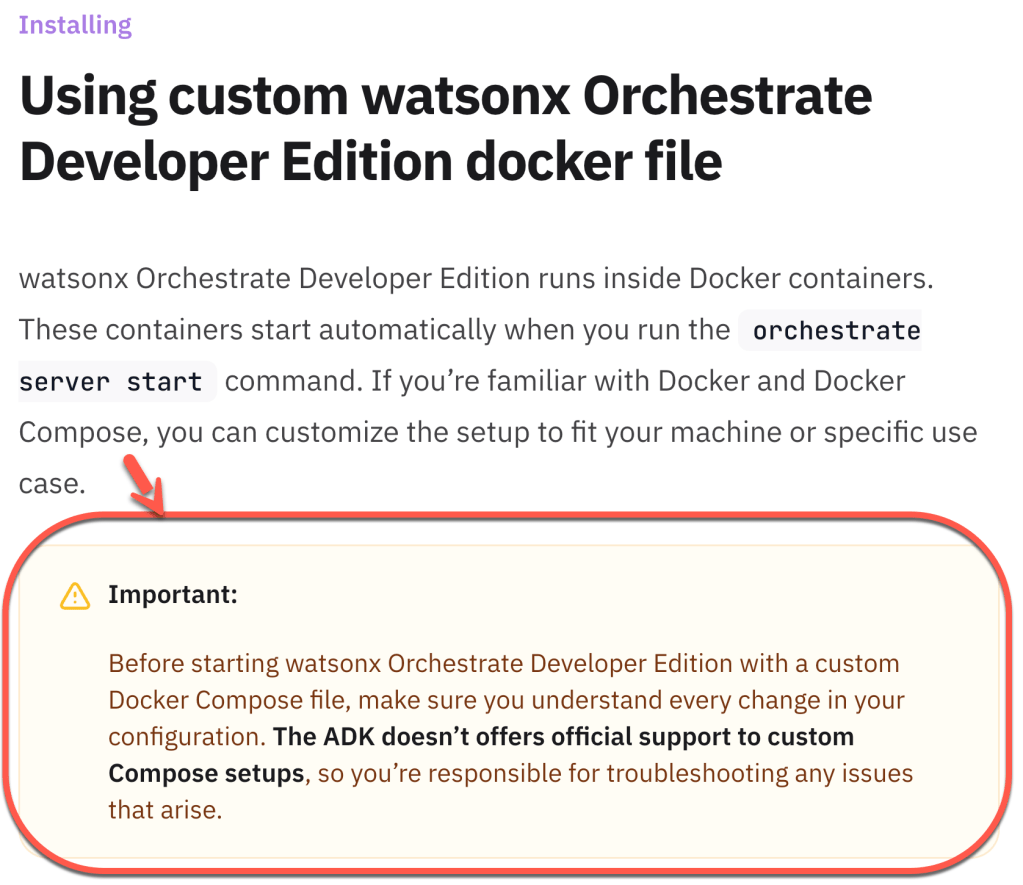
Custom Docker-Compose in watsonx Orchestrate it not official supported: LINK
Screen Shot 2025-11-10


Related 35 min YouTube Video :-).

Table of content

  1. Motivation
  2. Set up the example Galaxium Travels Infrastructure
  3. Set up the watsonx Orchestrate ADK and watsonx Orchestrate Development Edition Server
  4. Create and import a local Python tool
  5. Add a connection
  6. Import an Agent
  7. Generate synthetic test cases
  8. Run the evaluation
  9. Final thoughts
  10. References & further reading
  11. Optional Additional network monitoring option on the local machine

1. Motivation

In this blog post, we’ll explore how to test an AI Agent using the Evaluation Framework from the watsonx Orchestrate Agent Development Kit (ADK). Instead of diving into abstract theory, we’ll use a hands-on, concrete example.

👉 Galaxium Travels – a fictional booking system that runs locally with Docker. We will connect one Agent with one Tool and define a few small test stories to run automated evaluations.

By the end, you will clearly understand:

  • How to define simple Stories (what a user wants from the agent)
  • How to generate synthetic Test Cases from these stories
  • How to run evaluations in the watsonx Orchestrate ADK
  • How to inspect results to check correctness and reliability

This makes the topic not only practical but also reproducible on your own machine. We are building a Test Case for listing all available flights in Galaxium Travels.

1.1 Why this matters

AI Agents are powerful but often unpredictable. Without proper testing, they can surprise you in unexpected ways.

Validation, evaluation, and testing are also crucial for AI agents, as I mentioned in the posts Exploring the “AI Operational Complexity Cube idea” for Testing Applications integrating LLMs and The Rise of Agentic AI and Managing Expectations.

As I highlighted in Exploring the “AI Operational Complexity Cube idea” for Testing Applications integrating LLMs Evaluation and validation are essential for:

  • Trust – Can I rely on my Agent to give correct results?
  • Reliability – Will it work in different situations, not just once?
  • Transparency – Can I understand why the Agent took certain actions?

The watsonx Orchestrate ADK provides a built-in Evaluation Framework that helps answer these questions. This post demonstrates how to use it step by step, making the process easy for newcomers and useful for advanced users.

1.2 The Evaluation Framework

These are the main steps in the watsonx Orchestrate Evaluation Framework to realize it.

  1. Define the Stories, which means what you want to achieve with an agent and its related tooling.
  2. Generate synthetic Test Cases based on the given Stories
    • A synthetic Test Cases contains
      • Agent
      • Story
      • Starting sentence
      • Goals
      • Goal details
  3. Run the Evaluation
  4. Examine the Evaluation Results

The following image is a screenshot from watsonx Orchestrate documentation on 2025-09-11 and documents the concept of the evaluation tooling in the watsonx Orchestrate ADK.

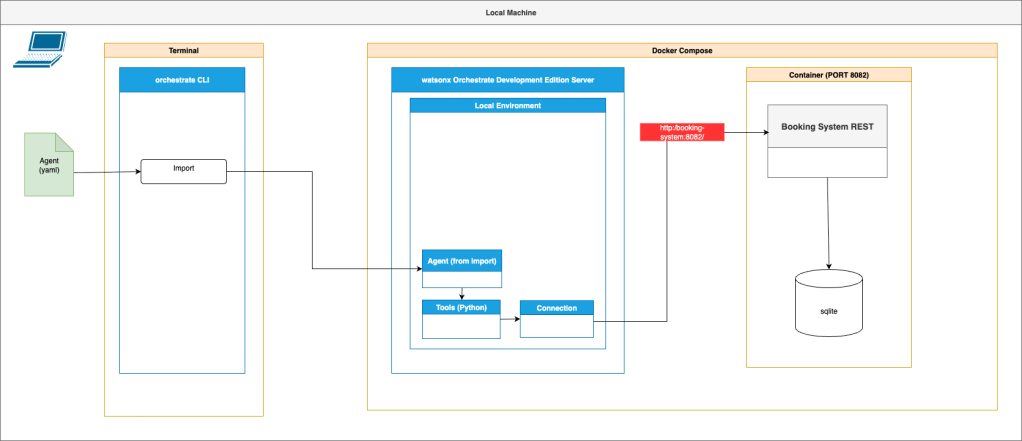
The following image displays the main components of the evaluation example.

  • Agent
  • Stories
  • Tools
  • Test Cases
  • Test Result

1.3 Key steps of the Evaluation Framework example

The GIF below illustrates the steps.

  1. Set up the infrastructure

Clone the example repo, prepare environment variables, start everything with Docker Compose.

  1. Set up watsonx Orchestrate ADK + local server

Create & activate a virtual environment, install the necessary CLI, configure the .env file for local or live usage, start/stop the server, and integrate with Galaxium services.

  1. Create & import a local Python tool

Build the folder structure, write the Tool (making requests to the /flights endpoint), test it locally, freeze its dependencies, and import it into WatsonX Orchestrate.

  1. Add a connection

Define connections so Agent can invoke backend REST services; set credentials (if needed).

  1. Import an agent

Use a YAML configuration to define the Agent: which LLM, which Tool(s), instructions for behavior, etc. Import via CLI.

  1. Generate synthetic test cases

Define “stories” in a CSV (e.g. “What can you do for me?”, “How to get the available flights?”). Then use the evaluate/generate command with ADK to produce JSON test cases based on stories + tools.

  1. Run the evaluation

Pick one or more test case JSON files; run Orchestrate Evaluations Evaluate; gather results (Tool invocations, summaries, matching vs goals).

  1. Inspect & interpret results

Review snapshot files, goal details, output summaries. Compare expected vs actual behavior. Identify mismatches.

1.5 Set up a folder structure framework

Clone the GitHub following repository as a folder structure framework to run the example.

git clone https://github.com/thomassuedbroecker/galaxium_travels_evaluation_example
tree .

Folder structure:

├── example-application-infrastructure
│   └── README.md
├── LICENSE
├── README.md
└── watsonx-orchestrate-adk
 └── README.md

2. Set up the example Galaxium Travels Infrastructure

Step 1: Open the first terminal session.

Step 2: Clone the GitHub repository

cd example-application-infrastructure
git clone https://github.com/thomassuedbroecker/galaxium-travels-infrastructure

Step 3: Generate environment variables file

cd galaxium-travels-infrastructure/booking_system_rest
cat .env-template > .env

Step 4: Start all applications with Docker Compose

This command will build and start all applications of the Galaxium Travels Infrastructure

cd galaxium-travels-infrastructure/booking_system_rest
cat .env-template > .env

Step 6: Stop all applications with Docker compose

Stop all applications; we only need to build and create the container images to verify that everything is working locally.

Press ‘command’ and ‘C’ in the terminal session.


✅ That’s it! We now have:

  • The repository cloned
  • The backend running locally
  • Environment variables configured

Next, we’ll set up the Orchestrate ADK development server.

3. Set up the watsons Orchestrate ADK and watsonx Orchestrate Development Server

The watsonx Orchestrate Agent Development Kit (ADK) provides the runtime to:

  • Develop AI Agents
  • Connect Tools
  • Run Evaluations and more

To use it locally, we’ll install the ADK and run its development server.

You can follow the steps in the blog post Getting Started with Local AI Agents in the watsonx Orchestrate Developer Edition.

The following steps outline an extraction of information from the blog post and the WatsonX Orchestrate ADK documentation.

Step 0: Set up the virtual Python environment

The ADK is available as a Python package. It works best in a virtual environment (so it doesn’t conflict with other projects).

cd /watsonx-orchestrate-adk
python3.12 -m venv .venv
source ./.venv/bin/activate
python3 -m pip install --upgrade pip

Step 1: Install the watsonx Orchestrate CLI

source ./.venv/bin/activate
python3 -m pip install ibm-watsonx-orchestrate
orchestrate --version

Step 2: Generate the environment file for the ADK

cat .env_template > .env

Configuration for local usage and watsonx.ai.

# Developer
export WO_DEVELOPER_EDITION_SOURCE=myibm
# IBM ENTITLEMENT
export WO_ENTITLEMENT_KEY=<YOUR_ENTITLEMENT_KEY>
# IBM API KEY
export WATSONX_APIKEY=<YOUR_WATSONX_API_KEY>
export WATSONX_SPACE_ID=<YOUR_SPACE_ID>

Step 3: Start the watsonx Orchestrate Developer Edition

cd watsonx-orchestrate-adk
source ./.venv/bin/activate
orchestrate server start --env-file .env

Step 4: Clear server configuration

The ADK includes a development server that acts as a local test environment for Agents and Tools.

cd watsonx-orchestrate-adk
source ./.venv/bin/activate
orchestrate env list
orchestrate env activate local
  • Optional: Reset the server to start with a clean setup.
cd watsonx-orchestrate-adk
source ./.venv/bin/activate
orchestrate server reset
orchestrate server start --env-file .env

Step 5: Generate an export of the Docker Compose configurations

cd watsonx-orchestrate-adk
source ./.venv/bin/activate
orchestrate server eject -e $(pwd)/.env

This command generates a docker-compose.yml and a server.env file in the current folder.

Step 6: Stop the server

cd watsonx-orchestrate-adk
source ./.venv/bin/activate
orchestrate server stop

Step 7: Add the “Galaxium Travels Infrastructure” to the Docker Compose file

Add the following code to the services in the docker-compose.yml. The surrounding code can have variations.

wxo-doc-processing-cache-minio-init:
 image: ${OPENSOURCE_REGISTRY_PROXY:-docker.io}/minio/mc:latest
 platform: linux/amd64
 profiles:
 - docproc
 depends_on:
 wxo-server-minio:
 condition: service_healthy
 entrypoint: >
 /bin/sh -c "
 /usr/bin/mc alias set wxo-server-minio http://wxo-server-minio:9000 ${MINIO_ROOT_USER:-minioadmin} ${MINIO_ROOT_PASSWORD:-watsonxorchestrate};
 /usr/bin/mc mb wxo-server-minio/wxo-document-processing-cache;
 exit 0;
 "
.....
  
  ########################
  # Galaxium Travel Infrastructure 
  # ------- begin -------
  ########################
  
  hr_database:
    image: hr_database:1.0.0
    container_name: wx_hr_database
    ports:
    - 8081:8081
    
  booking_system:
    image: booking_system_rest:1.0.0
    container_name: wx_booking_system_rest
    ports:
    - 8082:8082
    ​
  web_app:
    image: web_app:1.0.0
    container_name: wx_web_app
    ports:
    - 8083:8083
    environment:
    - BACKEND_URL=http://booking_system:8082
        
  ########################
  # Galaxium Travel Infrastructure 
  # ------- end -------
  ########################

volumes:
 tools:
 driver: local
 wxo-server-redis-data:
 driver: local
 wxo-server-db:

Step 7: Start the watsonx Orchestrate Development Edition Server again

We start the server with Langfuse for monitoring the local LangGraph agents.

Therefore, we use the generated and configured server.env and docker-compose.yml file.

  1. Start server
cd watsonx-orchestrate-adk
source ./.venv/bin/activate
export SERVER_ENVIRONMENT=server.env
export DOCKER_COMPOSE_FILE=docker-compose.yml
orchestrate server start -e ${SERVER_ENVIRONMENT} -f ${DOCKER_COMPOSE_FILE} --with-langfuse
  1. Start chat lite ui
orchestrate chat start 

✅ Done! We now have:

  • The ADK installed
  • The development server running
  • Both systems (backend + ADK) active in parallel

Next, we’ll create a local Python Tool to connect the Agent with the backend.

4. Create and import a local Python Tool

Now that the watsonx Orchestrate Development Edition server and the Galaxium Travels backend are running, we’ll build a Python Tool that lets our Agent fetch flight information.

A Tool is basically:

  1. A Python function that performs an action (e.g., call a REST API)
  2. Registered so the Agent can discover and use it

Step 1: Set up the following folder structure

cd watsonx-orchestrate-adk
source ./.venv/bin/activate
mkdir tools
mkdir tools/getFlights_tool_local
mkdir tools/getFlights_tool_local/source
cd tools/getFlights_tool_local/source
touch getFlights_tool_localhost.py
touch requirements.txt
tree .
  • Output:
.
├── getFlights_tool_localhost.py
└── requirements.txt

1 directory, 2 files

Step 2: Navigate back to the watsonx-orchestrate-adk folder

cd ../../../

Step 3: Implement a Tool locally

Add the following code into the created file, getFlights_tool_localhost.py In this code, we access th

  • Open the file created
nano ./tools/getFlights_tool_local/source/getFlights_tool_localhost.py
  • Insert the following code into the file

The tool invokes the REST API endpoint for receiving all flights in the booking backend.

from ibm_watsonx_orchestrate.agent_builder.tools import tool, ToolPermission
import requests

@tool(name="getFlights_tool_localhost", 
     description="Retrieve a list of all available flights, including origin, destination, departure and arrival times, price, and the number of seats currently available for booking.", 
     permission=ToolPermission.ADMIN)

def getFlights_tool_localhost() -> dict:
    """This tool Retrieve a list of all available flights, including origin, destination, departure and arrival times, price, and the number of seats currently available for booking.

    Returns:
        dict : The list of available flights.
    """

    url = "http://localhost:8082/flights" #outside compose
    #url = "http://booking_system:8082/flights" #inside compose

    headers = {
            "Content-Type": "application/json",
    }
    
    try:
        response = requests.get(url, headers=headers)
        if response.status_code == 200:
            return response.json()
        else:
            return_value = {"error": {response.text()} }
            return_value_array = [{return_value}]
            return return_value_array
    except Exception as e:
            return_value = {"error": {e} }
            return_value_array = [{return_value}]
            return return_value_array

  • Show the content of the file again.
cat ./tools/getFlights_tool_local/source/getFlights_tool_localhost.py

Step 4: Test the Tool locally and in compose

Invoke the booking backend directly from the localhost.

  1. Open the file created
nano ./tools/getFlights_tool_local/source/getFlights_tool_localhost.py
  1. Add the following code to the tool code to test the tool locally. This code must be commented out later when we are going to import the tool to watsonx Orchestrate. We just execute the tool as a local Python application.
# Test the tool 
print(f"Tool output: {getFlights_tool_localhost()}")
  1. Show the content of the file
ccd /watsonx-orchestrate-adk
cat ./tools/getFlights_tool_local/source/getFlights_tool_localhost.py
  • Run the Tool
cd watsonx-orchestrate-adk
source .venv/bin/activate
pip install requests
python3 tools/getFlights_tool_local/source/getFlights_tool_localhost.py
  • Output:
Tool output: [{'flight_id': 1, 'origin': 'Earth', 'destination': 'Mars', 'departure_time': '2099-01-01T09:00:00Z', 'arrival_time': '2099-01-01T17:00:00Z', 'price': 1000000, 'seats_available': 5}, {'flight_id': 2, 'origin': 'Earth', 'destination': 'Moon', 'departure_time': '2099-01-02T10:00:00Z', 'arrival_time': '2099-01-02T14:00:00Z', 'price': 500000, 'seats_available': 3}, {'flight_id': 3, 'origin': 'Mars', 'destination': 'Earth', 'departure_time': '2099-01-03T12:00:00Z', 'arrival_time': '2099-01-03T20:00:00Z', 'price': 950000, 'seats_available': 7}, {'flight_id': 4, 'origin': 'Venus', 'destination': 'Earth', 'departure_time': '2099-01-04T08:00:00Z', 'arrival_time': '2099-01-04T18:00:00Z', 'price': 1200000, 'seats_available': 2}, {'flight_id': 5, 'origin': 'Jupiter', 'destination': 'Europa', 'departure_time': '2099-01-05T15:00:00Z', 'arrival_time': '2099-01-05T19:00:00Z', 'price': 2000000, 'seats_available': 1}, {'flight_id': 6, 'origin': 'Earth', 'destination': 'Venus', 'departure_time': '2099-01-06T07:00:00Z', 'arrival_time': '2099-01-06T15:00:00Z', 'price': 1100000, 'seats_available': 4}, {'flight_id': 7, 'origin': 'Moon', 'destination': 'Mars', 'departure_time': '2099-01-07T11:00:00Z', 'arrival_time': '2099-01-07T19:00:00Z', 'price': 800000, 'seats_available': 6}, {'flight_id': 8, 'origin': 'Mars', 'destination': 'Jupiter', 'departure_time': '2099-01-08T13:00:00Z', 'arrival_time': '2099-01-08T23:00:00Z', 'price': 2500000, 'seats_available': 2}, {'flight_id': 9, 'origin': 'Europa', 'destination': 'Earth', 'departure_time': '2099-01-09T09:00:00Z', 'arrival_time': '2099-01-09T21:00:00Z', 'price': 3000000, 'seats_available': 3}, {'flight_id': 10, 'origin': 'Earth', 'destination': 'Pluto', 'departure_time': '2099-01-10T06:00:00Z', 'arrival_time': '2099-01-11T06:00:00Z', 'price': 5000000, 'seats_available': 1}]

Step 4: Save the needed libaries in a requirements.txt file

  1. Save the library’s configuration
cd watsonx-orchestrate-adk/
pip freeze > tools/getFlights_tool_local/source/requirements.txt
  1. Show the library’s configuration
cd /watsonx-orchestrate-adk
cat tools/getFlights_tool_local/source/requirements.txt

Step 5: Import the local Python Tool for listing the available flights

  1. Open the file created
nano ./tools/getFlights_tool_local/source/getFlights_tool_localhost.py
  1. Comment out the local tool execution ,and the outside compose configuration in the tool implementation
...
    #url = "http://localhost:8082/flights" #outside compose
 url = "http://booking_system:8082/flights" #inside compose
...
# Test the tool 
#print(f"Tool output: {getFlights_tool_local()}")
  1. Show the content of the file
cd /watsonx-orchestrate-adk
cat ./tools/getFlights_tool_local/source/getFlights_tool_localhost.py
  1. Import the Tool with the localhost:8082 configuration into the watsonx Orchestrate Developer Edition
cd watsonx-orchestrate-adk
source .venv/bin/activate
cd tools/getFlights_tool_local/source
export KIND="python"
export FILE="$(pwd)/getFlights_tool_localhost.py"
export REQUIREMENTS_FILE="$(pwd)/requirements.txt"

orchestrate tools import --kind ${KIND} --file ${FILE} --requirements-file ${REQUIREMENTS_FILE}
  • Output:
[INFO] - Using requirement file: "/watsonx-orchestrate-adk/tools/getFlights_tool_local/source/requirements.txt"
[INFO] - Tool 'getFlights_tool_localhost' imported successfully
  1. Navigate back to the watsonx-orchestrate-adk folder
cd ../../../

✅ Done! We now have:

  • Python Tool (getFlights_tool_localhost)
  • Connected to the Galaxium Travels backend
  • Visible in the ADK development server

Next, we’ll import the Agent and connect it with this Tool.

5. Add a connection

In watsonx Orchestrate, we can add a connection to external systems using various authentication options. It defines URL and the authentication to the external system, which can be used later from the Tools.

In the image below you see the Tool and the Connection configured to connect inside compose the the backend.

Step 1: Create a connection

cd watsonx-orchestrate-adk
cd tools/getFlights_tool_local/source
export APPLICATION_ID="galaxium-travels-booking-backend"
orchestrate connections add --app-id ${APPLICATION_ID}
cd ../../../

Step 2: Configure the connection

Now we define that the team in watsonx Orchestrate can use the connection to connect to the external system.

cd watsonx-orchestrate-adk
cd tools/getFlights_tool_local/source
export APPLICATION_ID="galaxium-travels-booking-backend"
#export SERVER_URL="http://localhost:8082/" outside compose
export SERVER_URL="http://booking_system:8082/" inside compose
export ENVIRONMENT="draft"
export TYPE="team"
export KIND="basic"
orchestrate connections configure --app-id ${APPLICATION_ID} --server-url ${APPLICATION_ID} --environment ${ENVIRONMENT} --type ${TYPE} --kind ${KIND}
cd ../../../

Step 3: Set the credentials for the connection

At the moment the our backend doesn’t have an authentication, but when you invoke an unprotected REST API with a base authentication, the call will also be executed. This is just to show how to setup a connection for the backend.

cd watsonx-orchestrate-adk
cd tools/getFlights_tool_local/source
export APPLICATION_ID="galaxium-travels-booking-backend"
export ENVIRONMENT="draft"
export SERVICE_USERNAME="admin"
export SERVICE_PASSWORD="admin"
orchestrate connections set-credentials --app-id ${APPLICATION_ID} --environment ${ENVIRONMENT} --username ${SERVICE_USERNAME} --password ${SERVICE_PASSWORD}
cd ../../../

6. Import an Agent

With our Tool in place, the next step is to import an Agent into the ADK development server. This Agent will use the getFlights_tool_localhost Tool to answer requests about available flights.

Step 1: Set up the following folder structure

cd watsonx-orchestrate-adk
mkdir ./agents
touch ./agents/Galaxium_Travels_GetFlights_Agent.yaml

Step 2: Insert the following Agent configuration into the created file

Now we create a new agent from an Agent configuration file, in this case a yaml file.

  1. Open the file created
nano ./agents/Galaxium_Travels_GetFlights_Agent.yaml
  1. Insert the following code
kind: native
name: Galaxium_Travels_GetFlights_Agent
display_name: Galaxium_Travels_GetFlights_Agent
description: This Agent manages all the required tasks a user would perform to list available flights.
context_access_enabled: true
context_variables: []
llm: watsonx/meta-llama/llama-3-2-90b-vision-instruct
style: default
instructions: |-
  You are Arthur, the AI Agent of the Galaxium Travels Company, and you are here to help users manage their travels through our Galaxy with the Galaxium Travels Company.
  Select the right available tool to fulfill the following tasks for a user who interacts with the Agent:
  * List available flights.

  Your output must always provide well-formatted Markdown language.
  You can use bold, bullet points, tabs, or numbering to structure the text so that it is easier to display in a format that is more readable by human readers when it makes sense. 
  Your output must always be well-formatted Markdown.
  You can use bold, bullet points, tabs, or numbering to structure the text so that it is easier to display in a format that is more readable by human readers when it makes sense. 
  Use Markdown table and charts formatting, where possible, to convey the content to the user, but ensure you generate VALID content for the tables.
guidelines: []
collaborators: []
tools:
- getFlights_tool_localhost
knowledge_base: []
chat_with_docs:
  enabled: false
  vector_index:
    chunk_size: 400
    chunk_overlap: 50
    limit: 10
  generation:
    prompt_instruction: ''
    max_docs_passed_to_llm: 5
    generated_response_length: Moderate
    display_text_no_results_found: I searched my knowledge base, but did not find
      anything related to your query
    display_text_connectivity_issue: I might have information related to your query
      to share, but am unable to connect to my knowledge base at the moment
    idk_message: I'm afraid I don't understand. Please rephrase your question.
  query_rewrite:
    enabled: true
  confidence_thresholds:
    retrieval_confidence_threshold: Lowest
    response_confidence_threshold: Lowest
  citations:
    citation_title: How do we know?
    citations_shown: -1
  hap_filtering:
    output:
      enabled: false
      threshold: 0.5
starter_prompts:
  is_default_prompts: false
  prompts:
  - id: default0
    title: How can you help me?
    subtitle: How can you help me?
    prompt: How can you help me?
    state: active
  - id: default1
    title: What are the available flight?
    subtitle:  What are the available flight?
    prompt: What are the available flight?
    state: active
welcome_content:
  welcome_message: Welcome! I am Arthur, your AI Agent, here to help you to manage your travels through!
  description: Accuracy of generated answers may vary. Please double-check responses.
  is_default_message: false
spec_version: v1

Step 3: Import the Agents from the yaml files

source .venv/bin/activate
cd ./agents
export AGENT_CONFIGUATION_FILE="$(pwd)/Galaxium_Travels_GetFlights_Agent.yaml"
orchestrate agents import -f "${AGENT_CONFIGUATION_FILE}"

Output:

[INFO] - Agent 'Galaxium_Travels_GetFlights_Agent' imported successfully
  1. Navigate back to the watsonx-orchestrate-adk folder
cd ../

Step 4: List the Agents again

We need to ensure that we get the full name of the Agent we want to export. If needed, open a new terminal, in the watsonx-orchestrate-adk folder, and insert the following commands.

cd /watsonx-orchestrate-adk
source .venv/bin/activate
orchestrate agents list

In the output, we notice that the name has not changed during the import.

-Pro agents % orchestrate agents list
 Agents                                            
┏━━━━━━━━━━━┳━━━━━━━━━━━┳━━━━━━━━━━━┳━━━━━━━━━┳━━━━━━━━━━━┳━━━━━━━━━━━┳━━━━━━━━━━━┳━━━━━━━━━━━━┓
┃           ┃           ┃           ┃         ┃           ┃           ┃ Knowledge ┃            ┃
┃ Name      ┃ Descript… ┃ LLM       ┃ Style   ┃ Collabor… ┃ Tools     ┃ Base      ┃ ID         ┃
┡━━━━━━━━━━━╇━━━━━━━━━━━╇━━━━━━━━━━━╇━━━━━━━━━╇━━━━━━━━━━━╇━━━━━━━━━━━╇━━━━━━━━━━━╇━━━━━━━━━━━━┩
│ Galaxium_ │ This      │ watsonx/m │ default │           │ getFligh… │           │ e17c5030-8 │
│ Travels_G │ Agent     │ eta-llama │         │           │           │           │ 715-41bc-9 │
│ etFlights │ manages   │ /llama-3- │         │           │           │           │ bdd-e7be65 │
│ _Agent    │ all the   │ 2-90b-vis │         │           │           │           │ 81b2f9     │
│           │ required  │ ion-instr │         │           │           │           │            │
│           │ tasks a   │ uct       │         │           │           │           │            │
│           │ user      │           │         │           │           │           │            │
│           │ would     │           │         │           │           │           │            │
│           │ perform   │           │         │           │           │           │            │
│           │ to list   │           │         │           │           │           │            │
│           │ available │           │         │           │           │           │            │
│           │ flights.  │           │         │           │           │           │            │
├───────────┼───────────┼───────────┼─────────┼───────────┼───────────┼───────────┼────────────┤
│ AskOrches │ A helpful │ watsonx/m │ default │           │           │           │ ad592717-1 │
│ trate     │ AI        │ eta-llama │         │           │           │           │ d79-4e2b-8 │
│           │ assistant │ /llama-3- │         │           │           │           │ 0e1-26a45c │
│           │           │ 2-90b-vis │         │           │           │           │ 975232     │
│           │           │ ion-instr │         │           │           │           │            │
│           │           │ uct       │         │           │           │           │            │
└───────────┴───────────┴───────────┴─────────┴───────────┴───────────┴───────────┴────────────┘

Now you can verify the Agent in the Lite Chat

✅ Done! We now have:

  • A Tool (getFlights_tool_localhost)
  • An Agent (Galaxium Agent) that knows how to use it
  • Both available in the ADK development server

Next, we’ll create Stories and generate Test Cases to evaluate the Agent.

7. Generate the synthetic test cases

  1. Define stories based a combination of the initial question of a conversation with an Agent in a csv file
  2. Generate synthetic Test Cases based on the given stories.

Step 1: Set up following folder structure

cd /watsonx-orchestrate-adk
source .venv/bin/activate
mkdir ./evaluations
mkdir ./evaluations/stories
cd ./evaluations/stories
touch galaxium_travels_stories.csv
cd ../../
tree .

Output of the actual folder structure:

.
├── agents
│   └── Galaxium_Travels_GetFlights_Agent.yaml
├── docker-compose.yml
├── evaluations
│   └── stories
│       └── galaxium_travels_stories.csv
├── README.md
├── sdk
├── server.env
└── tools
 └── getFlights_tool_local
 └── source
 ├── __pycache__
 │   └── getFlights_tool_localhost.cpython-312.pyc
 ├── getFlights_tool_localhost.py
 └── requirements.txt

Step 2: Insert stories into the csv file

We define a starting point for a story for an interaction with the Agent. Stories are stored in a simple CSV file. Each row represents one user request.

  1. Insert the content
echo "story,agent" >> ./evaluations/stories/galaxium_travels_stories.csv
echo "What can you do for me?,Galaxium_Travels_GetFlights_Agent" >> ./evaluations/stories/galaxium_travels_stories.csv
echo "How to get the available flights?,Galaxium_Travels_GetFlights_Agent" >> ./evaluations/stories/galaxium_travels_stories.csv
  1. Show the content
cat ./evaluations/stories/galaxium_travels_stories.csv

Example output:

story,agent
What can you do for me?,Galaxium_Travels_GetFlights_Agent
How get the available flights?,Galaxium_Travels_GetFlights_Agent
  1. Open the Tool and configure for local access
nano ./agents/Galaxium_Travels_GetFlights_Agent.yaml
  1. Comment out the inside compose configuration in the tool implementation
...
 url = "http://localhost:8082/flights" #outside compose
    #url = "http://booking_system:8082/flights" #inside compose
...

Step 3: Generate a synthetic test case for the evaluation

To generate synthetic Test Cases, we use as input the stories and the given tools for the Agent. The Agent is known by the story configuration.

cd watsonx-orchestrate-adk
export STORIES_PATH=./evaluations/stories/galaxium_travels_stories.csv
export TOOLS_PATH=./tools/getFlights_tool_local/source
export ENV_FILE=./.env
​
source .venv/bin/activate
orchestrate evaluations generate --stories-path ${STORIES_PATH} --tools-path ${TOOLS_PATH} --env-file ${ENV_FILE}

Output:

Now we see how synthetic test cases will be generated by the framework, using the Stories, Agents, and Tools.

[INFO] - WatsonX credentials validated successfully.
[INFO] - Found 2 stories for agent 'Galaxium_Travels_GetFlights_Agent'
[INFO] - Running tool planner for agent Galaxium_Travels_GetFlights_Agent
​
📘 Planning tool calls for story: What can you do for me?
​
 LLM Tool Plan:
[
 {
    "tool_name": "getFlights_tool_localhost",
    "inputs": {}
 }
]
​
🔧 Tool: getFlights_tool_localhost
 Raw inputs: {}
 Resolved inputs: {}
 Tool getFlights_tool_localhost returned non-dict output: [{'flight_id': 1, 'origin': 'Earth', 'destination': 'Mars', 'departure_time': '2099-01-01T09:00:00Z', 'arrival_time': '2099-01-01T17:00:00Z', 'price': 1000000, 'seats_available': 5}, {'flight_id': 2, 'origin': 'Earth', 'destination': 'Moon', 'departure_time': '2099-01-02T10:00:00Z', 'arrival_time': '2099-01-02T14:00:00Z', 'price': 500000, 'seats_available': 3}, {'flight_id': 3, 'origin': 'Mars', 'destination': 'Earth', 'departure_time': '2099-01-03T12:00:00Z', 'arrival_time': '2099-01-03T20:00:00Z', 'price': 950000, 'seats_available': 7}, {'flight_id': 4, 'origin': 'Venus', 'destination': 'Earth', 'departure_time': '2099-01-04T08:00:00Z', 'arrival_time': '2099-01-04T18:00:00Z', 'price': 1200000, 'seats_available': 2}, {'flight_id': 5, 'origin': 'Jupiter', 'destination': 'Europa', 'departure_time': '2099-01-05T15:00:00Z', 'arrival_time': '2099-01-05T19:00:00Z', 'price': 2000000, 'seats_available': 1}, {'flight_id': 6, 'origin': 'Earth', 'destination': 'Venus', 'departure_time': '2099-01-06T07:00:00Z', 'arrival_time': '2099-01-06T15:00:00Z', 'price': 1100000, 'seats_available': 4}, {'flight_id': 7, 'origin': 'Moon', 'destination': 'Mars', 'departure_time': '2099-01-07T11:00:00Z', 'arrival_time': '2099-01-07T19:00:00Z', 'price': 800000, 'seats_available': 6}, {'flight_id': 8, 'origin': 'Mars', 'destination': 'Jupiter', 'departure_time': '2099-01-08T13:00:00Z', 'arrival_time': '2099-01-08T23:00:00Z', 'price': 2500000, 'seats_available': 2}, {'flight_id': 9, 'origin': 'Europa', 'destination': 'Earth', 'departure_time': '2099-01-09T09:00:00Z', 'arrival_time': '2099-01-09T21:00:00Z', 'price': 3000000, 'seats_available': 3}, {'flight_id': 10, 'origin': 'Earth', 'destination': 'Pluto', 'departure_time': '2099-01-10T06:00:00Z', 'arrival_time': '2099-01-11T06:00:00Z', 'price': 5000000, 'seats_available': 1}]
Stored output under tool name: getFlights_tool_localhost = [{'flight_id': 1, 'origin': 'Earth', 'destination': 'Mars', 'departure_time': '2099-01-01T09:00:00Z', 'arrival_time': '2099-01-01T17:00:00Z', 'price': 1000000, 'seats_available': 5}, {'flight_id': 2, 'origin': 'Earth', 'destination': 'Moon', 'departure_time': '2099-01-02T10:00:00Z', 'arrival_time': '2099-01-02T14:00:00Z', 'price': 500000, 'seats_available': 3}, {'flight_id': 3, 'origin': 'Mars', 'destination': 'Earth', 'departure_time': '2099-01-03T12:00:00Z', 'arrival_time': '2099-01-03T20:00:00Z', 'price': 950000, 'seats_available': 7}, {'flight_id': 4, 'origin': 'Venus', 'destination': 'Earth', 'departure_time': '2099-01-04T08:00:00Z', 'arrival_time': '2099-01-04T18:00:00Z', 'price': 1200000, 'seats_available': 2}, {'flight_id': 5, 'origin': 'Jupiter', 'destination': 'Europa', 'departure_time': '2099-01-05T15:00:00Z', 'arrival_time': '2099-01-05T19:00:00Z', 'price': 2000000, 'seats_available': 1}, {'flight_id': 6, 'origin': 'Earth', 'destination': 'Venus', 'departure_time': '2099-01-06T07:00:00Z', 'arrival_time': '2099-01-06T15:00:00Z', 'price': 1100000, 'seats_available': 4}, {'flight_id': 7, 'origin': 'Moon', 'destination': 'Mars', 'departure_time': '2099-01-07T11:00:00Z', 'arrival_time': '2099-01-07T19:00:00Z', 'price': 800000, 'seats_available': 6}, {'flight_id': 8, 'origin': 'Mars', 'destination': 'Jupiter', 'departure_time': '2099-01-08T13:00:00Z', 'arrival_time': '2099-01-08T23:00:00Z', 'price': 2500000, 'seats_available': 2}, {'flight_id': 9, 'origin': 'Europa', 'destination': 'Earth', 'departure_time': '2099-01-09T09:00:00Z', 'arrival_time': '2099-01-09T21:00:00Z', 'price': 3000000, 'seats_available': 3}, {'flight_id': 10, 'origin': 'Earth', 'destination': 'Pluto', 'departure_time': '2099-01-10T06:00:00Z', 'arrival_time': '2099-01-11T06:00:00Z', 'price': 5000000, 'seats_available': 1}]
​
📘 Planning tool calls for story: How to get the available flights?
​
 LLM Tool Plan:
[
 {
    "tool_name": "getFlights_tool_localhost",
    "inputs": {}
 }
]
​
🔧 Tool: getFlights_tool_localhost
 Raw inputs: {}
 Resolved inputs: {}
Stored output under tool name: getFlights_tool_localhost = [{'flight_id': 1, 'origin': 'Earth', 'destination': 'Mars', 'departure_time': '2099-01-01T09:00:00Z', 'arrival_time': '2099-01-01T17:00:00Z', 'price': 1000000, 'seats_available': 5}, {'flight_id': 2, 'origin': 'Earth', 'destination': 'Moon', 'departure_time': '2099-01-02T10:00:00Z', 'arrival_time': '2099-01-02T14:00:00Z', 'price': 500000, 'seats_available': 3}, {'flight_id': 3, 'origin': 'Mars', 'destination': 'Earth', 'departure_time': '2099-01-03T12:00:00Z', 'arrival_time': '2099-01-03T20:00:00Z', 'price': 950000, 'seats_available': 7}, {'flight_id': 4, 'origin': 'Venus', 'destination': 'Earth', 'departure_time': '2099-01-04T08:00:00Z', 'arrival_time': '2099-01-04T18:00:00Z', 'price': 1200000, 'seats_available': 2}, {'flight_id': 5, 'origin': 'Jupiter', 'destination': 'Europa', 'departure_time': '2099-01-05T15:00:00Z', 'arrival_time': '2099-01-05T19:00:00Z', 'price': 2000000, 'seats_available': 1}, {'flight_id': 6, 'origin': 'Earth', 'destination': 'Venus', 'departure_time': '2099-01-06T07:00:00Z', 'arrival_time': '2099-01-06T15:00:00Z', 'price': 1100000, 'seats_available': 4}, {'flight_id': 7, 'origin': 'Moon', 'destination': 'Mars', 'departure_time': '2099-01-07T11:00:00Z', 'arrival_time': '2099-01-07T19:00:00Z', 'price': 800000, 'seats_available': 6}, {'flight_id': 8, 'origin': 'Mars', 'destination': 'Jupiter', 'departure_time': '2099-01-08T13:00:00Z', 'arrival_time': '2099-01-08T23:00:00Z', 'price': 2500000, 'seats_available': 2}, {'flight_id': 9, 'origin': 'Europa', 'destination': 'Earth', 'departure_time': '2099-01-09T09:00:00Z', 'arrival_time': '2099-01-09T21:00:00Z', 'price': 3000000, 'seats_available': 3}, {'flight_id': 10, 'origin': 'Earth', 'destination': 'Pluto', 'departure_time': '2099-01-10T06:00:00Z', 'arrival_time': '2099-01-11T06:00:00Z', 'price': 5000000, 'seats_available': 1}]
​
✅ Snapshot saved to evaluations/stories/Galaxium_Travels_GetFlights_Agent_snapshot_llm.json
[INFO] - Running batch annotate for agent Galaxium_Travels_GetFlights_Agent
​
 Generating test cases for story 1: What can you do for me?
✅ Test case 1 written to evaluations/stories/Galaxium_Travels_GetFlights_Agent_test_cases/synthetic_test_case_1.json
✅ Test case 2 written to evaluations/stories/Galaxium_Travels_GetFlights_Agent_test_cases/synthetic_test_case_2.json
​
 Generating test cases for story 2: How to get the available flights?
✅ Test case 3 written to evaluations/stories/Galaxium_Travels_GetFlights_Agent_test_cases/synthetic_test_case_3.json
✅ Test case 4 written to evaluations/stories/Galaxium_Travels_GetFlights_Agent_test_cases/synthetic_test_case_4.json
[INFO] - Test cases stored at: evaluations/stories

Step 4: Verify the generated synthetic test cases

The synthetic test case is a configuration in a JSON format. Next, we can execute an evaluation.

You can see in the JSON the defined goals which will be verified later during the evaluation. In the following example, synthetic test case extraction, the test case verifies that the Agent will do an invocation of the tool get_flight and should provide summarization of the result. The given result will be used later to assert an execution result.

Step 5: Verify the generated test cases

  1. Show the current folder structure
tree .

Output:

.
├── agents
│   └── Galaxium_Travels_GetFlights_Agent.yaml
├── docker-compose.yml
├── evaluations
│   └── stories
│       ├── Galaxium_Travels_GetFlights_Agent_snapshot_llm.json
│       ├── Galaxium_Travels_GetFlights_Agent_test_cases
│       │   ├── synthetic_test_case_1.json
│       │   ├── synthetic_test_case_2.json
│       │   ├── synthetic_test_case_3.json
│       │   └── synthetic_test_case_4.json
│       └── galaxium_travels_stories.csv
├── README.md
├── sdk
├── server.env
└── tools
 └── getFlights_tool_local
 └── source
 ├── __pycache__
 │   └── getFlights_tool_localhost.cpython-312.pyc
 ├── getFlights_tool_localhost.py
 └── requirements.txt
​
10 directories, 13 files
  1. Inspect the synthetic test case
cat evaluations/stories/Galaxium_Travels_GetFlights_Agent_test_cases/synthetic_test_case_1.json

Here is an example for one the generated test cases:

  • Agent
  • Story
  • Starting sentence
  • Goals
  • Goal details
{
  "agent": "Galaxium_Travels_GetFlights_Agent",
  "story": "What can you do for me?",
  "starting_sentence": "I'd like to know what flights are available.",
  "goals": {
    "get_flights": [
      "summarize"
 ]
 },
  "goal_details": [
 {
      "type": "tool_call",
      "name": "get_flights",
      "tool_name": "getFlights_tool_localhost",
      "args": {}
 },
 {
      "type": "text",
      "name": "summarize",
      "response": "Here are the available flights: Earth to Mars, Earth to Moon, Mars to Earth, Venus to Earth, Jupiter to Europa, Earth to Venus, Moon to Mars, Mars to Jupiter, Europa to Earth, Earth to Pluto.",
      "keywords": [
        "Earth",
        "Mars",
        "Moon",
        "Venus",
        "Jupiter",
        "Europa",
        "Pluto"
 ]
 }
 ]
}

8. Run the evaluation

Now that we have our Test Cases (test_cases.json), we can run the Evaluation Framework to test the Agent and the Tool. This step checks if the Agent behaves as expected when executing the Stories.

Step 1: Create output directory for the test results

cd watsonx-orchestrate-adk
mkdir ./evaluations/test_results

Step 2: Define the resources for the evaluation

Now we can define which of the test cases we want to execute using environment variables.

cd watsonx-orchestrate-adk
export TEST_CASE_1=./evaluations/stories/Galaxium_Travels_GetFlights_Agent_test_cases/synthetic_test_case_1.json
export TEST_CASE_2=./evaluations/stories/Galaxium_Travels_GetFlights_Agent_test_cases/synthetic_test_case_2.json
export TEST_CASE_3=./evaluations/stories/Galaxium_Travels_GetFlights_Agent_test_cases/synthetic_test_case_3.json
export TEST_CASE_4=./evaluations/stories/Galaxium_Travels_GetFlights_Agent_test_cases/synthetic_test_case_4.json
export TEST_RESULTS_PATH=./evaluations/test_results
export ENV_FILE=./.env

Step 3: Run an evaluation for one of the four test cases

In our case, we will run only one test case of our four test cases.

Explanation:

  • --agent → the Agent we want to test
  • --test-cases → input file containing the generated test cases
  • --output → where the evaluation results will be stored
cd watsonx-orchestrate-adk
source .venv/bin/activate
orchestrate evaluations evaluate --test-paths ${TEST_CASE_1} --output-dir ${TEST_RESULTS_PATH}  --env-file ${ENV_FILE}

Optionally you can run all test cases:

cd watsonx-orchestrate-adk
source .venv/bin/activate
orchestrate evaluations evaluate --test-paths "${TEST_CASE_1}","${TEST_CASE_2}","${TEST_CASE_2}","${TEST_CASE_4}"  --output-dir ${TEST_RESULTS_PATH}  --env-file ${ENV_FILE}

Output:

[INFO] - Existing connection 'galaxium-travels-booking-backend' with environment 'draft' found. Updating configuration
[INFO] - Configuration successfully updated for 'draft' environment of connection 'galaxium-travels-booking-backend'.
(.venv) thomassuedbroecker@Mac watsonx-orchestrate-adk % source .venv/bin/activate
orchestrate evaluations evaluate --test-paths ${TEST_CASE_1} --output-dir ${TEST_RESULTS_PATH}  --env-file ${ENV_FILE}
[INFO] - WatsonX credentials validated successfully.
[INFO] - Using test paths: ['./evaluations/stories/Galaxium_Travels_GetFlights_Agent_test_cases/synthetic_test_case_1.json']
[INFO] - Using output directory: ./evaluations/test_results
Running evaluation with tenant local
Running test case: synthetic_test_case_1
[Task-0] 👤 User: I'd like to know what flights are available.
[Task-0] 🤖 WXO: {"type": "tool_call", "name": "get_flights_tool_localhost", "args": 
{}, "id": "chatcmpl-tool-71edb5a2b767480fb08ded6b28"}
[Task-0] 🤖 WXO: {"type": "tool_response", "content": "[{'flight_id': 1, 'origin': 
'Earth', 'destination': 'Mars', 'departure_time': '2099-01-01T09:00:00Z', 
'arrival_time': '2099-01-01T17:00:00Z', 'price': 1000000, 'seats_available': 5}, 
{'flight_id': 2, 'origin': 'Earth', 'destination': 'Moon', 'departure_time': 
'2099-01-02T10:00:00Z', 'arrival_time': '2099-01-02T14:00:00Z', 'price': 500000, 
'seats_available': 3}, {'flight_id': 3, 'origin': 'Mars', 'destination': 'Earth', 
'departure_time': '2099-01-03T12:00:00Z', 'arrival_time': '2099-01-03T20:00:00Z', 
'price': 950000, 'seats_available': 7}, {'flight_id': 4, 'origin': 'Venus', 
'destination': 'Earth', 'departure_time': '2099-01-04T08:00:00Z', 'arrival_time': 
'2099-01-04T18:00:00Z', 'price': 1200000, 'seats_available': 2}, {'flight_id': 5, 
'origin': 'Jupiter', 'destination': 'Europa', 'departure_time': 
'2099-01-05T15:00:00Z', 'arrival_time': '2099-01-05T19:00:00Z', 'price': 2000000, 
'seats_available': 1}, {'flight_id': 6, 'origin': 'Earth', 'destination': 'Venus', 
'departure_time': '2099-01-06T07:00:00Z', 'arrival_time': '2099-01-06T15:00:00Z', 
'price': 1100000, 'seats_available': 4}, {'flight_id': 7, 'origin': 'Moon', 
'destination': 'Mars', 'departure_time': '2099-01-07T11:00:00Z', 'arrival_time': 
'2099-01-07T19:00:00Z', 'price': 800000, 'seats_available': 6}, {'flight_id': 8, 
'origin': 'Mars', 'destination': 'Jupiter', 'departure_time': '2099-01-08T13:00:00Z', 
'arrival_time': '2099-01-08T23:00:00Z', 'price': 2500000, 'seats_available': 2}, 
{'flight_id': 9, 'origin': 'Europa', 'destination': 'Earth', 'departure_time': 
'2099-01-09T09:00:00Z', 'arrival_time': '2099-01-09T21:00:00Z', 'price': 3000000, 
'seats_available': 3}, {'flight_id': 10, 'origin': 'Earth', 'destination': 'Pluto', 
'departure_time': '2099-01-10T06:00:00Z', 'arrival_time': '2099-01-11T06:00:00Z', 
'price': 5000000, 'seats_available': 1}]", "name": "get_flights_tool_localhost", 
"tool_call_id": "chatcmpl-tool-71edb5a2b767480fb08ded6b28"}
[Task-0] 🤖 WXO: **Available Flights**
| Flight ID | Origin | Destination | Departure Time | Arrival Time | Price | Seats 
Available |
| --- | --- | --- | --- | --- | --- | --- |
| 1 | Earth | Mars | 2099-01-01T09:00:00Z | 2099-01-01T17:00:00Z | 1000000 | 5 |
| 2 | Earth | Moon | 2099-01-02T10:00:00Z | 2099-01-02T14:00:00Z | 500000 | 3 |
| 3 | Mars | Earth | 2099-01-03T12:00:00Z | 2099-01-03T20:00:00Z | 950000 | 7 |
| 4 | Venus | Earth | 2099-01-04T08:00:00Z | 2099-01-04T18:00:00Z | 1200000 | 2 |
| 5 | Jupiter | Europa | 2099-01-05T15:00:00Z | 2099-01-05T19:00:00Z | 2000000 | 1 |
| 6 | Earth | Venus | 2099-01-06T07:00:00Z | 2099-01-06T15:00:00Z | 1100000 | 4 |
| 7 | Moon | Mars | 2099-01-07T11:00:00Z | 2099-01-07T19:00:00Z | 800000 | 6 |
| 8 | Mars | Jupiter | 2099-01-08T13:00:00Z | 2099-01-08T23:00:00Z | 2500000 | 2 |
| 9 | Europa | Earth | 2099-01-09T09:00:00Z | 2099-01-09T21:00:00Z | 3000000 | 3 |
| 10 | Earth | Pluto | 2099-01-10T06:00:00Z | 2099-01-11T06:00:00Z | 5000000 | 1 |
[Task-0] 👤 User: END
[WARNING] Unexpected function call: get_flights_tool_localhost
[SUCCESS] Text message matched: Summary - **Available Flights**
| Flight ID | Origin | Destination | Departure Time | Arrival Time | Price | Seats 
Available |
| --- | --- | --- | --- | --- | --- | --- |
| 1 | Earth | Mars | 2099-01-01T09:00:00Z | 2099-01-01T17:00:00Z | 1000000 | 5 |
| 2 | Earth | Moon | 2099-01-02T10:00:00Z | 2099-01-02T14:00:00Z | 500000 | 3 |
| 3 | Mars | Earth | 2099-01-03T12:00:00Z | 2099-01-03T20:00:00Z | 950000 | 7 |
| 4 | Venus | Earth | 2099-01-04T08:00:00Z | 2099-01-04T18:00:00Z | 1200000 | 2 |
| 5 | Jupiter | Europa | 2099-01-05T15:00:00Z | 2099-01-05T19:00:00Z | 2000000 | 1 |
| 6 | Earth | Venus | 2099-01-06T07:00:00Z | 2099-01-06T15:00:00Z | 1100000 | 4 |
| 7 | Moon | Mars | 2099-01-07T11:00:00Z | 2099-01-07T19:00:00Z | 800000 | 6 |
| 8 | Mars | Jupiter | 2099-01-08T13:00:00Z | 2099-01-08T23:00:00Z | 2500000 | 2 |
| 9 | Europa | Earth | 2099-01-09T09:00:00Z | 2099-01-09T21:00:00Z | 3000000 | 3 |
| 10 | Earth | Pluto | 2099-01-10T06:00:00Z | 2099-01-11T06:00:00Z | 5000000 | 1 |
/Users/thomassuedbroecker/Documents/tsuedbro/dev/galaxium_travels_evaluation_example/w
atsonx-orchestrate-adk/.venv/lib/python3.12/site-packages/pydantic/main.py:463: 
UserWarning: Pydantic serializer warnings:
 PydanticSerializationUnexpectedValue(Expected `enum` - serialized value may not be 
as expected [input_value='Summary Matched', input_type=str])
 return self.__pydantic_serializer__.to_python(
Evaluating 1 tasks... ━━━━━━━━━━━━━━━━━━━━━━━━━━━━━━━━━━━━━━━━ 100% 0:00:00
 Agent with Knowledge Summary Metrics                         
╭─────────┬────────────┬───────────┬────────────┬───────────┬────────────┬───────────╮
│         │            │           │            │           │ Number     │           │
│         │ Average    │ Average   │            │ Average   │ Calls to   │ Knowledge │
│         │ Response   │ Retrieval │ Average    │ Answer    │ Knowledge  │ Bases     │
│ Dataset │ Confidence │ Confiden… │ Faithfuln… │ Relevancy │ Bases      │ Called    │
├─────────┼────────────┼───────────┼────────────┼───────────┼────────────┼───────────┤
╰─────────┴────────────┴───────────┴────────────┴───────────┴────────────┴───────────╯
 Agent Metrics                                     
╭───────┬────────┬───────┬────────┬───────┬────────┬───────┬────────┬───────┬────────╮
│       │        │       │        │       │        │       │        │       │ Avg    │
│       │        │       │ Total  │ Tool  │ Tool   │ Agent │        │       │ Resp   │
│       │ Total  │ LLM   │ Tool   │ Call  │ Call   │ Rout… │ Text   │ Jour… │ Time   │
│ Data… │ Steps  │ Steps │ Calls  │ Prec… │ Recall │ Accu… │ Match  │ Succ… │ (sec)  │
├───────┼────────┼───────┼────────┼───────┼────────┼───────┼────────┼───────┼────────┤
│ synt… │ 4      │ 2     │ 1      │ 0.0   │ 0.0    │ 0.0   │ Summa… │ False │ 8.78   │
│       │        │       │        │       │        │       │ Match… │       │        │
├───────┼────────┼───────┼────────┼───────┼────────┼───────┼────────┼───────┼────────┤
│ Summ… │ 4.0    │ 2.0   │ 1.0    │ 0.0   │ 0.0    │ 0.0   │ 1.0    │ 0.0   │ 8.78   │
│ (Ave… │        │       │        │       │        │       │        │       │        │
╰───────┴────────┴───────┴────────┴───────┴────────┴───────┴────────┴───────┴────────╯
Results saved to ./evaluations/test_results

Step 4: Overview of the generated result files

cd watsonx-ochestrate-adk
tree ./evaluations/test_results
  • Output:
./evaluations/test_results
├── config.yml
├── knowledge_base_metrics
│   └── knowledge_base_detailed_metrics.json
├── knowledge_base_summary_metrics.json
├── messages
│   ├── synthetic_test_case_1.messages.analyze.json
│   ├── synthetic_test_case_1.messages.json
│   └── synthetic_test_case_1.metrics.json
└── summary_metrics.csv

3 directories, 7 files

Step 5: Inspect the synthetic_test_case_1.messages.analyze.json

Here, in the analysis, one Tool call is identified as irrelevant tool call. We need to define what an irrelevant tool call is in this context.

[
 {
        "message": {
            "role": "user",
            "content": "I'd like to know what flights are available.",
            "type": "text",
            "event": null,
            "conversational_search_metadata": null
 },
        "reason": null
 },
 {
        "message": {
            "role": "assistant",
            "content": "{\"type\": \"tool_call\", \"name\": \"get_flights_tool_localhost\", \"args\": {}, \"id\": \"chatcmpl-tool-71edb5a2b767480fb08ded6b28\"}",
            "type": "tool_call",
            "event": "run.step.delta",
            "conversational_search_metadata": null
 },
        "reason": {
            "reason": "irrelevant tool call"
 }
 },
 {
        "message": {
            "role": "assistant",
            "content": "{\"type\": \"tool_response\", \"content\": \"[{'flight_id': 1, 'origin': 'Earth', 'destination': 'Mars', 'departure_time': '2099-01-01T09:00:00Z', 'arrival_time': '2099-01-01T17:00:00Z', 'price': 1000000, 'seats_available': 5}, {'flight_id': 2, 'origin': 'Earth', 'destination': 'Moon', 'departure_time': '2099-01-02T10:00:00Z', 'arrival_time': '2099-01-02T14:00:00Z', 'price': 500000, 'seats_available': 3}, {'flight_id': 3, 'origin': 'Mars', 'destination': 'Earth', 'departure_time': '2099-01-03T12:00:00Z', 'arrival_time': '2099-01-03T20:00:00Z', 'price': 950000, 'seats_available': 7}, {'flight_id': 4, 'origin': 'Venus', 'destination': 'Earth', 'departure_time': '2099-01-04T08:00:00Z', 'arrival_time': '2099-01-04T18:00:00Z', 'price': 1200000, 'seats_available': 2}, {'flight_id': 5, 'origin': 'Jupiter', 'destination': 'Europa', 'departure_time': '2099-01-05T15:00:00Z', 'arrival_time': '2099-01-05T19:00:00Z', 'price': 2000000, 'seats_available': 1}, {'flight_id': 6, 'origin': 'Earth', 'destination': 'Venus', 'departure_time': '2099-01-06T07:00:00Z', 'arrival_time': '2099-01-06T15:00:00Z', 'price': 1100000, 'seats_available': 4}, {'flight_id': 7, 'origin': 'Moon', 'destination': 'Mars', 'departure_time': '2099-01-07T11:00:00Z', 'arrival_time': '2099-01-07T19:00:00Z', 'price': 800000, 'seats_available': 6}, {'flight_id': 8, 'origin': 'Mars', 'destination': 'Jupiter', 'departure_time': '2099-01-08T13:00:00Z', 'arrival_time': '2099-01-08T23:00:00Z', 'price': 2500000, 'seats_available': 2}, {'flight_id': 9, 'origin': 'Europa', 'destination': 'Earth', 'departure_time': '2099-01-09T09:00:00Z', 'arrival_time': '2099-01-09T21:00:00Z', 'price': 3000000, 'seats_available': 3}, {'flight_id': 10, 'origin': 'Earth', 'destination': 'Pluto', 'departure_time': '2099-01-10T06:00:00Z', 'arrival_time': '2099-01-11T06:00:00Z', 'price': 5000000, 'seats_available': 1}]\", \"name\": \"get_flights_tool_localhost\", \"tool_call_id\": \"chatcmpl-tool-71edb5a2b767480fb08ded6b28\"}",
            "type": "tool_response",
            "event": "run.step.delta",
            "conversational_search_metadata": null
 },
        "reason": null
 },
 {
        "message": {
            "role": "assistant",
            "content": "**Available Flights**\n| Flight ID | Origin | Destination | Departure Time | Arrival Time | Price | Seats Available |\n| --- | --- | --- | --- | --- | --- | --- |\n| 1 | Earth | Mars | 2099-01-01T09:00:00Z | 2099-01-01T17:00:00Z | 1000000 | 5 |\n| 2 | Earth | Moon | 2099-01-02T10:00:00Z | 2099-01-02T14:00:00Z | 500000 | 3 |\n| 3 | Mars | Earth | 2099-01-03T12:00:00Z | 2099-01-03T20:00:00Z | 950000 | 7 |\n| 4 | Venus | Earth | 2099-01-04T08:00:00Z | 2099-01-04T18:00:00Z | 1200000 | 2 |\n| 5 | Jupiter | Europa | 2099-01-05T15:00:00Z | 2099-01-05T19:00:00Z | 2000000 | 1 |\n| 6 | Earth | Venus | 2099-01-06T07:00:00Z | 2099-01-06T15:00:00Z | 1100000 | 4 |\n| 7 | Moon | Mars | 2099-01-07T11:00:00Z | 2099-01-07T19:00:00Z | 800000 | 6 |\n| 8 | Mars | Jupiter | 2099-01-08T13:00:00Z | 2099-01-08T23:00:00Z | 2500000 | 2 |\n| 9 | Europa | Earth | 2099-01-09T09:00:00Z | 2099-01-09T21:00:00Z | 3000000 | 3 |\n| 10 | Earth | Pluto | 2099-01-10T06:00:00Z | 2099-01-11T06:00:00Z | 5000000 | 1 |",
            "type": "text",
            "event": "message.created",
            "conversational_search_metadata": null
 },
        "reason": null
 }
]

Step 6: Inspect the overview

Here, we see in the overview for the interpretation of predict, recall, and accuracy for the tool only, we have too few values.

You can find more insights about this fascinating topic in my blog post Land of Confusion using Classifications, and Metrics for a nonspecific Ground Truth.

We see that the output of the tool call was the same as expected, but overall, the story failed.

───────┬────────┬───────┬────────┬───────┬────────┬───────┬────────┬───────┬────────╮
│       │        │       │        │       │        │       │        │       │ Avg    │
│       │        │       │ Total  │ Tool  │ Tool   │ Agent │        │       │ Resp   │
│       │ Total  │ LLM   │ Tool   │ Call  │ Call   │ Rout… │ Text   │ Jour… │ Time   │
│ Data… │ Steps  │ Steps │ Calls  │ Prec… │ Recall │ Accu… │ Match  │ Succ… │ (sec)  │
├───────┼────────┼───────┼────────┼───────┼────────┼───────┼────────┼───────┼────────┤
│ synt… │ 4      │ 2     │ 1      │ 0.0   │ 0.0    │ 0.0   │ Summa… │ False │ 8.78   │
│       │        │       │        │       │        │       │ Match… │       │        │
├───────┼────────┼───────┼────────┼───────┼────────┼───────┼────────┼───────┼────────┤
│ Summ… │ 4.0    │ 2.0   │ 1.0    │ 0.0   │ 0.0    │ 0.0   │ 1.0    │ 0.0   │ 8.78   │
│ (Ave… │        │       │        │       │        │       │        │       │        │
╰───────┴────────┴───────┴────────┴───────┴────────┴───────┴────────┴───────┴────────╯

✅ Done! We now have:

  • Executed our first evaluation run
  • Confirmed that the Agent used the correct Tool
  • Collected structured results for inspection

Next, we’ll explore how to inspect and analyze results in more detail.

9. Final thoughts

This example is simple—but that’s give a good starting point for a base understanding. It gives a clean end-to-end view of how a story → tool → agent → test → evaluation works. Once comfortable, you can extend:

  • More complex tools
  • More elaborate stories (branching, error cases)
  • Higher diversity of test cases
  • Live monitoring + observability

If you follow through, you’ll gain confidence in how your AI agent behaves, catch issues early, and improve reliability.

In addition here a quick checklist: Testing AI Agents with watsonx Orchestrate ADK

  • ✅ Define clear user stories that include context, goal, and expected interaction
  • ✅ Build or import tools & REST APIs your agent needs
  • ✅ Generate synthetic test cases automatically from your stories
  • ✅ Set up backend + local environment to test tools locally
  • ✅ Use Evaluation Framework to simulate “trajectories” → compare actual behavior to ground-truth data
  • ✅ Check for correct ordering of tool calls + correct input parameters
  • ✅ Evaluate summary quality: final answers should be relevant, concise, accurate
  • ✅ Use “ground truth datasets” with expected conversations, tool-calls, goal dependencies etc.
  • ✅ Inspect evaluation results, logs, detect where errors occur → iterate to improve

10. References & further reading

11. Optional, and additionally, you can figure out the monitoring options on the local machine Network

It can also be useful to inspect when the Tool is used and how it connects to the Galaxium Travels backend within the Tool.

ifconfig 
#export CONNECTION=en0
export CONNECTION=bridge100
sudo tcpdump -i ${CONNECTION}
nc -zv localhost:8082
lsof -i :8082
networksetup -listallhardwareports

Open Activity Monitor from the Applications folder > Utilities


I hope this was useful to you and let’s see what’s next?

Greetings,

Thomas

#watsonx, #watsonxOrchestrate, #IBMCloud, #AIAgents, #AgentDevelopmentKit, #watsonxADK, #Evaluation, #Testing, #synthetictestcases

One thought on “Testing AI Agents with the watsonx Orchestrate Agent Developer Kit (ADK)- Evaluation Framework – A Hands-on Example

Add yours

Leave a comment

This site uses Akismet to reduce spam. Learn how your comment data is processed.

Blog at WordPress.com.

Up ↑